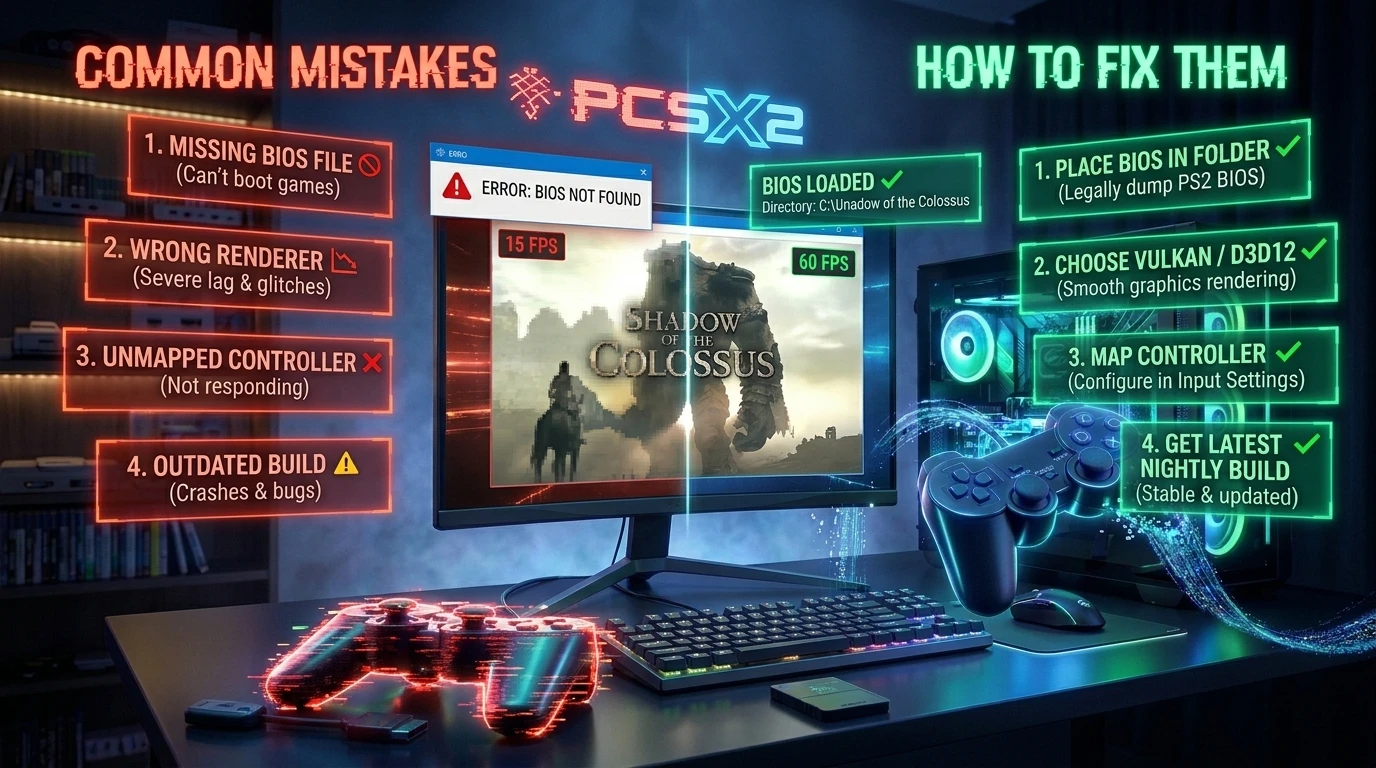

PCSX2 runs most PS2 games very well, but it is normal to run into a problem: a black screen, stutter, odd graphics or a controller that does not respond. This guide gathers the most common errors and the fixes that usually work, from the simplest to the most specific.
Before you start: menu names can change a little depending on your PCSX2 version. If you cannot find an option, look for a similar one in the same section. If you have not installed it yet, begin with our guide to installing and setting up PCSX2.
1. PCSX2 says it cannot find the BIOS
- Open the settings, go to the BIOS section and check that the selected folder is the one containing your BIOS files.
- Use the refresh option and pick a BIOS from the list. It must come from a real console and be complete.
- If the list stays empty, the files are probably damaged or incomplete. Dump them again from your own console.
2. The game will not start or stays on a black screen
- Check the game file. If the ISO image is damaged or incomplete, it will not boot. Try another copy or recreate it from your disc.
- Change the renderer. In the graphics settings try Vulkan, Direct3D 11 or Direct3D 12. A renderer that does not work well with your card is a frequent cause of black screens.
- Turn off fast boot. The BIOS settings have a fast boot option. Some games start better with it off.
- Try without patches or cheats. If you enabled widescreen patches or cheats, turn them off in the game properties and try again.
3. The game runs slowly or stutters
- Lower the internal resolution. It is the setting with the most weight. If you used 3x or higher, go back to 2x or native.
- Try another renderer. On some cards Vulkan runs better, on others Direct3D 11.
- Close other programs that use CPU or GPU while you play.
- Stutter in the first minute is normal. The emulator builds its shaders the first time it sees a scene, and the game smooths out afterwards.
- With care: the emulation settings include speed options that speed up some games but can break others. Change them one at a time and check the result.
4. Graphical glitches, lines or misplaced textures
- Try the other renderer before touching anything else.
- If the problem appears when you raise the resolution, go back to native and see if it disappears. If it does, the game does not get along with upscaling.
- The advanced graphics settings include hardware fixes, such as half-pixel offset or round sprite. Enable the ones that match the symptom one at a time, not all at once.
- Check for a newer PCSX2 version: many compatibility bugs are fixed in updates.
5. Sound cuts out or crackles
- In the audio settings, increase the buffer size. A bigger buffer gives more stability at the cost of some extra latency.
- Try another sound output and update your audio drivers.
- If the sound only fails when the game is slow, the underlying issue is performance: see section 3.
6. The controller does not respond or buttons are misassigned
- In the controller settings, use the automatic mapping option and pick your gamepad.
- If your controller does not appear, close other programs that may be using it, such as a game launcher, and reconnect it.
- Check the controller type. Some generic pads work better with a different input mode, which you can change in the settings.
7. Saves are not kept
- PCSX2 uses virtual memory cards. In the memory card settings, check that one is enabled for each slot.
- If a card gives errors, create a new one. Back up the one you have first.
- Remember to save inside the game. The emulator's quick save states are a different feature and do not replace the memory card.
8. The emulator will not open or shows a processor error
- Check that your machine meets the minimum requirements in the official documentation: a 64-bit processor with SSE4.1, a graphics card with Vulkan 1.1, Direct3D 11 or OpenGL 3.3, and 8 GB of RAM. An older machine may not run the emulator.
- Download the emulator only from its official site, pcsx2.net, and make sure you got the 64-bit version for your system.
- If the program closes when you open it, update your graphics card drivers.
When nothing works
Check that you have the latest version of the emulator, try another copy of the game and, if the problem continues, look up the game's name in the PCSX2 project's own compatibility database: it usually lists the settings each title needs. GigaROM cannot guarantee that every game will run without problems on every machine.
Have you not downloaded it yet? See the PCSX2 page for the requirements and the official link.
More PS2 guides
If you still do not know what to play, see our selection of the best PS2 games or browse the PS2 ROMs section. Before downloading anything, read our safety guide.
Notice: GigaROM does not host files. Use only copies of games you legally own. If you are a rights holder and want a listing removed, see our DMCA policy.