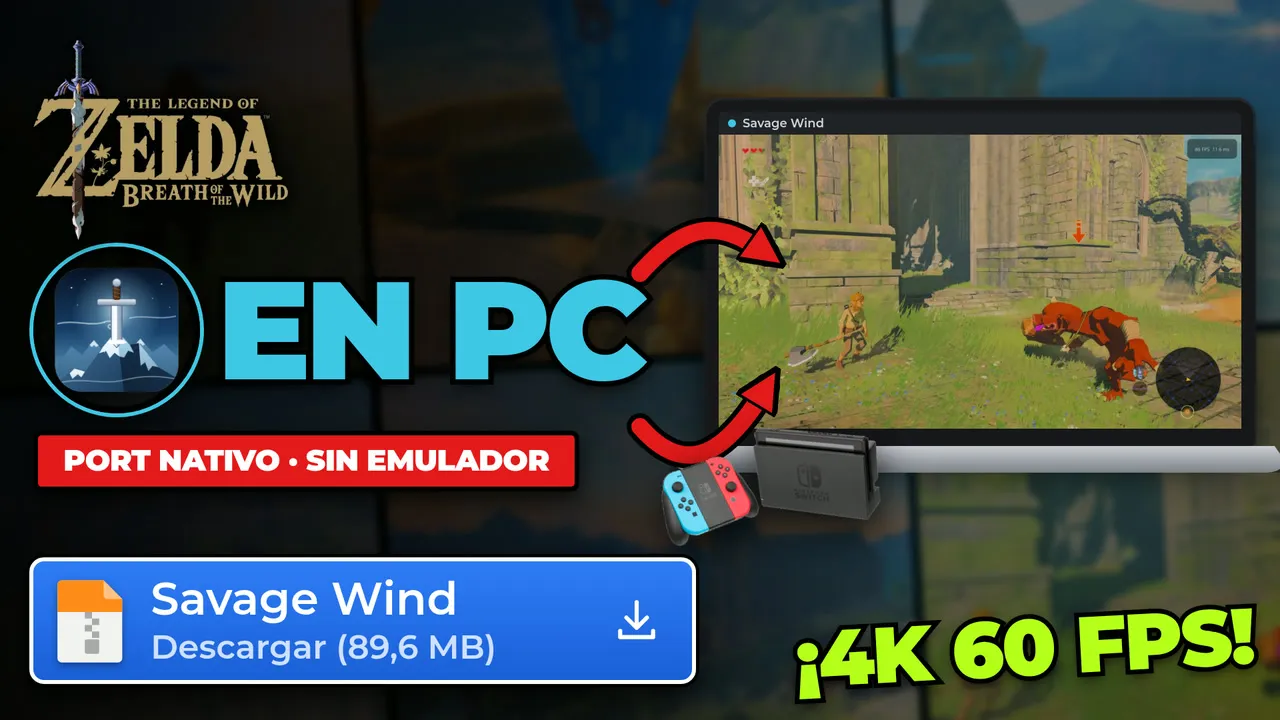

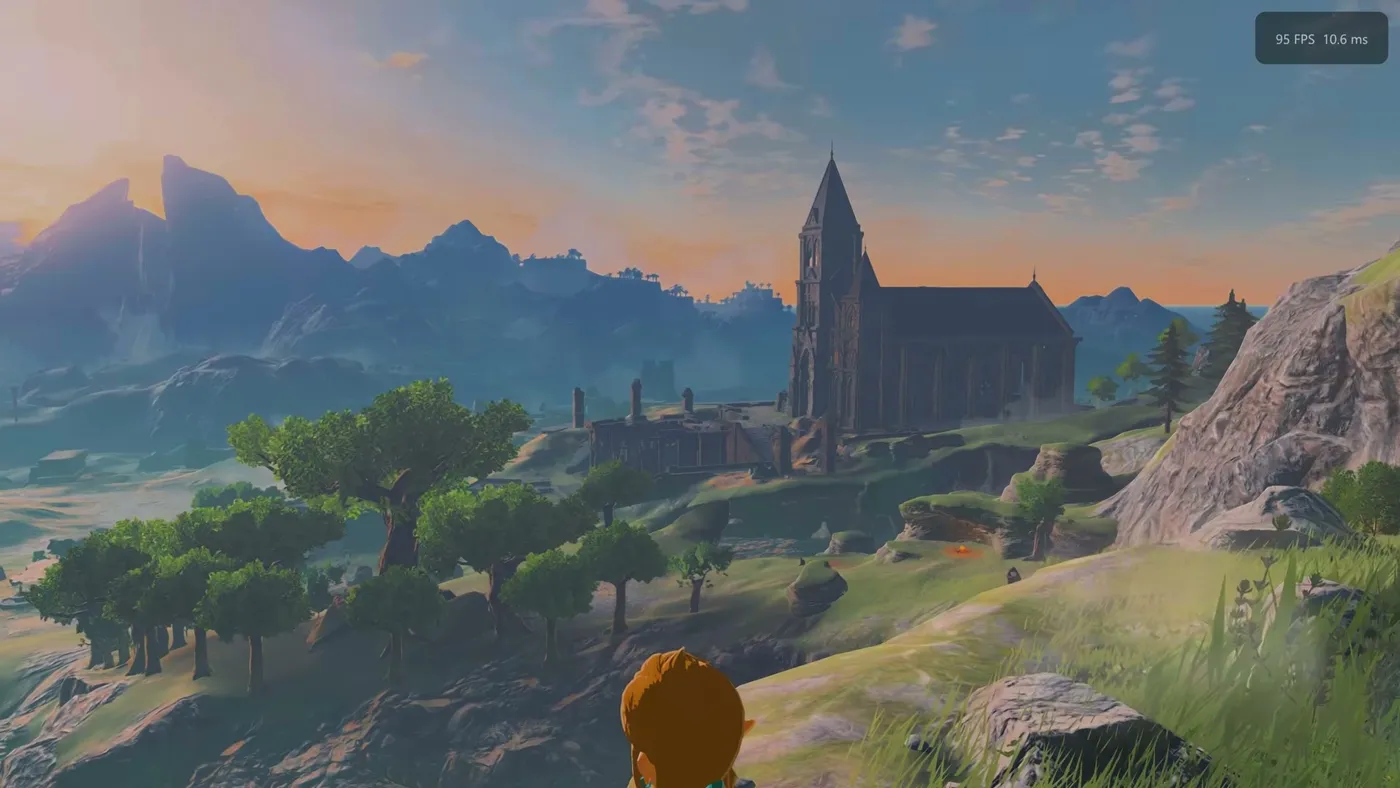
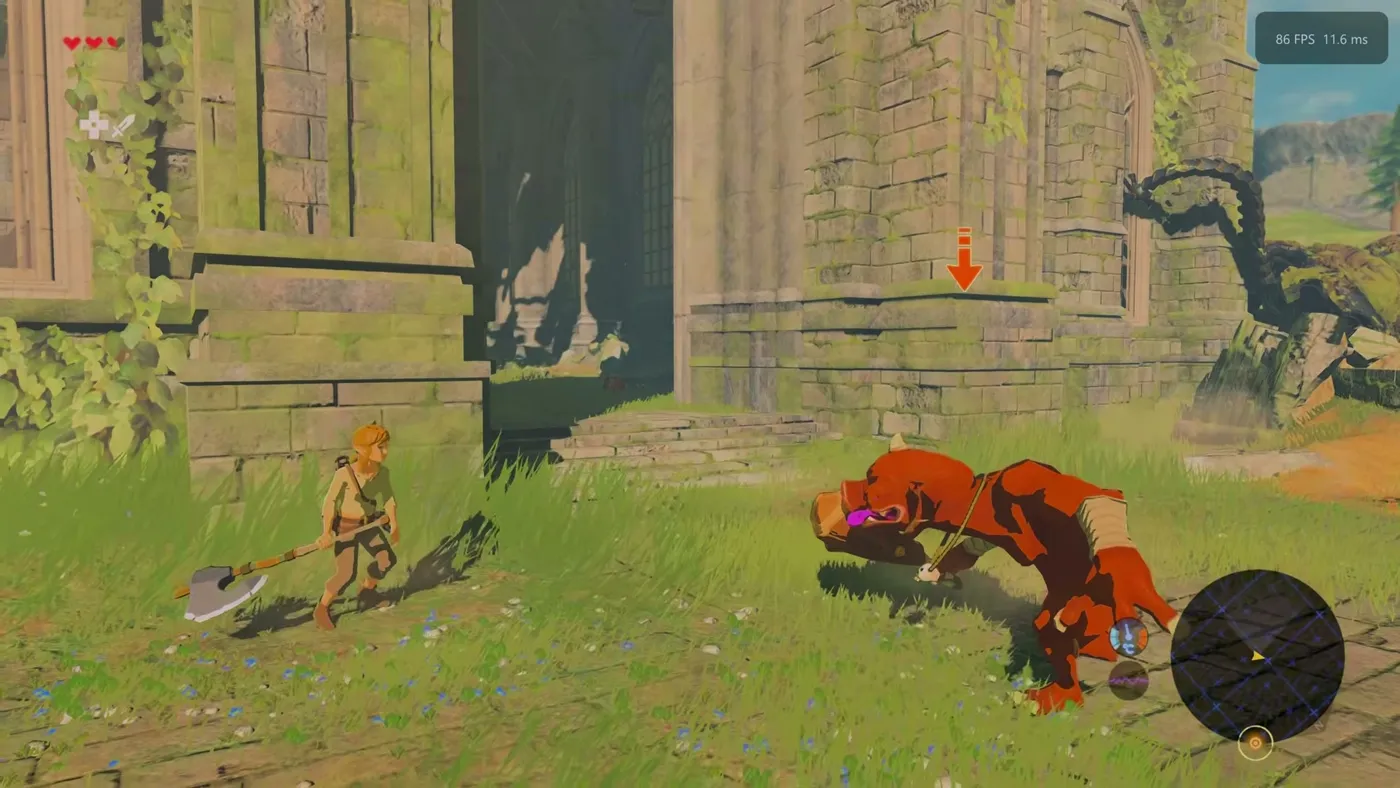
The Legend of Zelda: Breath of the Wild came out in 2017 for Switch and Wii U, and almost ten years later you can finally play it natively on PC: no emulator, real keyboard and mouse support, up to 4K and frame rates the console never dreamed of. It's called Savage Wind Recomp, and in this guide I'll explain what it is, how it works under the hood (in plain language, no jargon) and how to install it step by step.
One important warning before we start: it's an alpha. You can finish the whole game, but it may have bugs. The good news: it's free, open source and gets updated very often.
What is Savage Wind Recomp?
Savage Wind Recomp is a static recompilation of Breath of the Wild (Switch version 1.9.0) for Windows and Linux. It's developed by Revivedx and its code is open source under the MIT license. You can find it on the official GitHub.
Three things worth making clear right away:
- The game is not included. No game, no game files, no generated code. You provide the files and the program does the rest on your PC.
- It's a fan project. It has no relation to Nintendo. The Legend of Zelda: Breath of the Wild is © Nintendo.
- It's an alpha. Every release so far is a pre-release. The latest one as I write this is v0.5.3-alpha.5 (November 12, 2026).
By the way, the project's own README says that almost all of the code was written with the help of an AI (Claude, by Anthropic), directed, tested and reviewed by a person. I mention it because I think it's fair that you know before installing it.
How does it work? Emulator vs static recompilation
This is the part people ask me about the most, so here it is in simple terms.
An emulator translates while you play
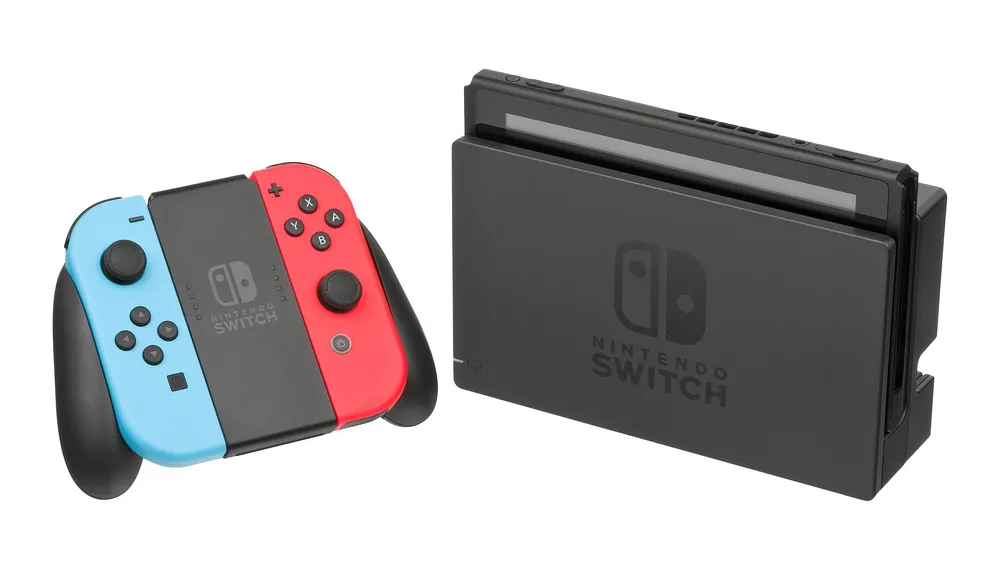
The Switch uses a different processor from your PC, so your PC can't understand its code directly. An emulator acts as a real-time translator: it reads each console instruction, translates it and runs it, all while you play. That's why emulation demands so much power.
A static recompilation translates only once
Savage Wind does something else: it converts every function of the Switch game into C code just once, before you play, and compiles it as a normal program for your PC. When you play, your processor runs native code, not a live translation.
And the graphics?
The game "talks" to the Switch's GPU through an API called NVN. Savage Wind implements NVN on top of Vulkan and also translates the Switch's shaders to Vulkan. That's why you need a graphics card with Vulkan 1.3.
Everything is generated on your PC
The result of the recompilation contains Nintendo's code, so it's not downloaded ready-made: it's generated on your computer from your files, it's for your personal use and it must not be shared. The project's releases only contain its own code.
So is it faster than an emulator? It depends on your PC. Your CPU no longer translates anything while you play, but the graphics work is still there and Vulkan drivers matter a lot. The project itself says it has no finished comparison, so I'd rather not promise you numbers.
What Savage Wind offers
- The full game and both DLC (if your copy has them).
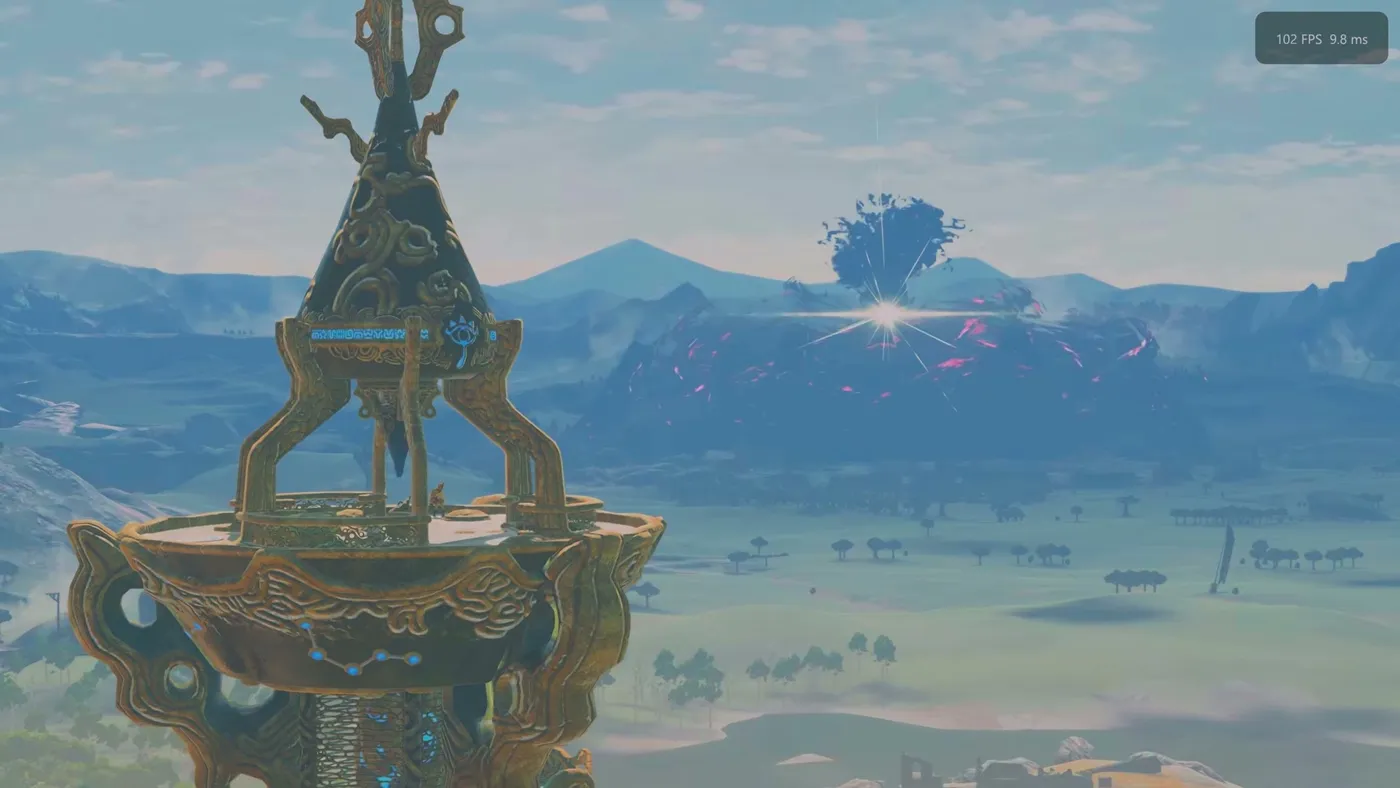
- From 30 to 360 FPS, or your monitor's own rate.
- Resolutions up to 4K and beyond, ultrawide support and FSR 1 upscaling.
- Graphics presets from Potato (below console quality) to Savage (far beyond it).
- Longer draw distance, sharper shadows, adjustable field of view, colour grading and HDR.
- Keyboard and mouse with a real mouse camera, and any controller, gyro included.
- Button prompts that change to match your controller.
- Save profiles, backups and import of Wii U and Cemu saves.
- Steam Deck and PC handhelds.
- Photo mode, accessibility options and cheats.
One caveat: the program allowing up to 360 FPS or 4K doesn't mean your PC will reach them. And because it's an alpha, some mechanics break above 30 FPS (the project has this documented).
Requirements to play Zelda Breath of the Wild on PC
These are the project's official requirements:
- The game files: your own copy of Breath of the Wild updated to version 1.9.0, extracted from your own console. Your own copy, taken from your own Switch. Yours, of course. We understand each other 😉
- System: Windows 10 or later, or x86-64 Linux.
- Graphics card: with Vulkan 1.3 (cards with only Vulkan 1.2, such as the GT 730, are not supported).
- RAM: 16 GB.
- Disk: about 20 GB free.
- Processor: with SSE4.2 (it runs faster with AVX2; without it the game code uses a slower mode).
What should the game files look like?
Two folders, already extracted, with these names:
exefs/with the filesmain,main.npdm,rtld,sdkandsubsdk0.romfs/with the game and the 1.9.0 update merged (41,062 files).- Optional: the DLC, each in its own folder,
aoc1/andaoc2/, kept separate fromromfs/.
How to get those files is outside this guide and also outside the project: neither Savage Wind nor I explain how to obtain them.
How to install native Zelda Breath of the Wild on PC, step by step
The installation below is for Windows. On Linux or Steam Deck you use the x86_64 .AppImage file (make it executable and open it).
Step 1: download Savage Wind from the official GitHub
Go to Releases on the official GitHub and open the most recent version (today, v0.5.3-alpha.5). You won't see a "Latest" label: that's normal, every release is a pre-release. Download SavageWind-0.5.3-alpha.5-windows.zip (about 90 MB).
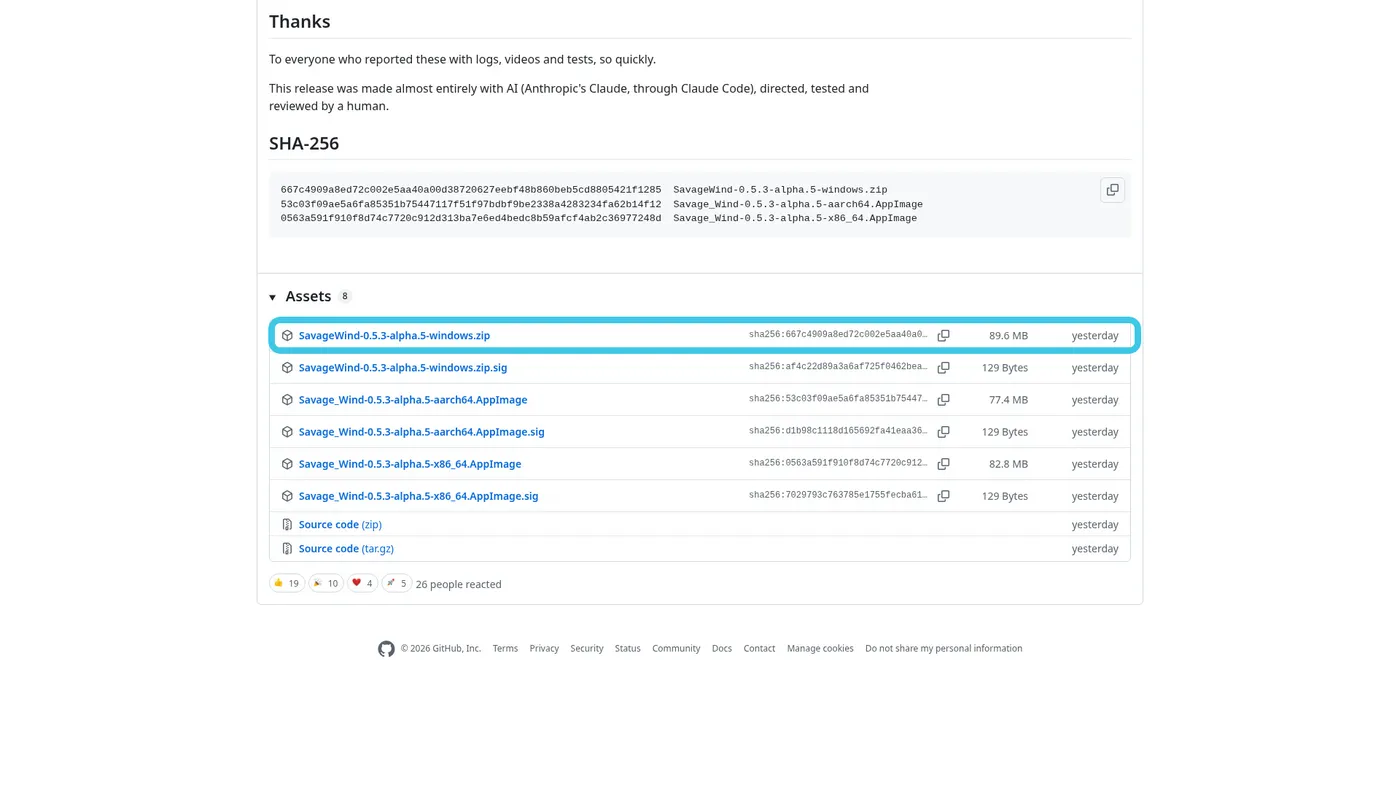
windows.zip file in the version's Assets list.Download it only from the official GitHub. It's free and you don't need any other website.
Step 2: extract the ZIP to a folder you can write to
Right-click the ZIP → Extract all → choose a folder such as C:\Games. Never in "Program Files" or inside OneDrive or any synced folder: the program needs to write there, and it's one of the reasons the setup stops halfway.
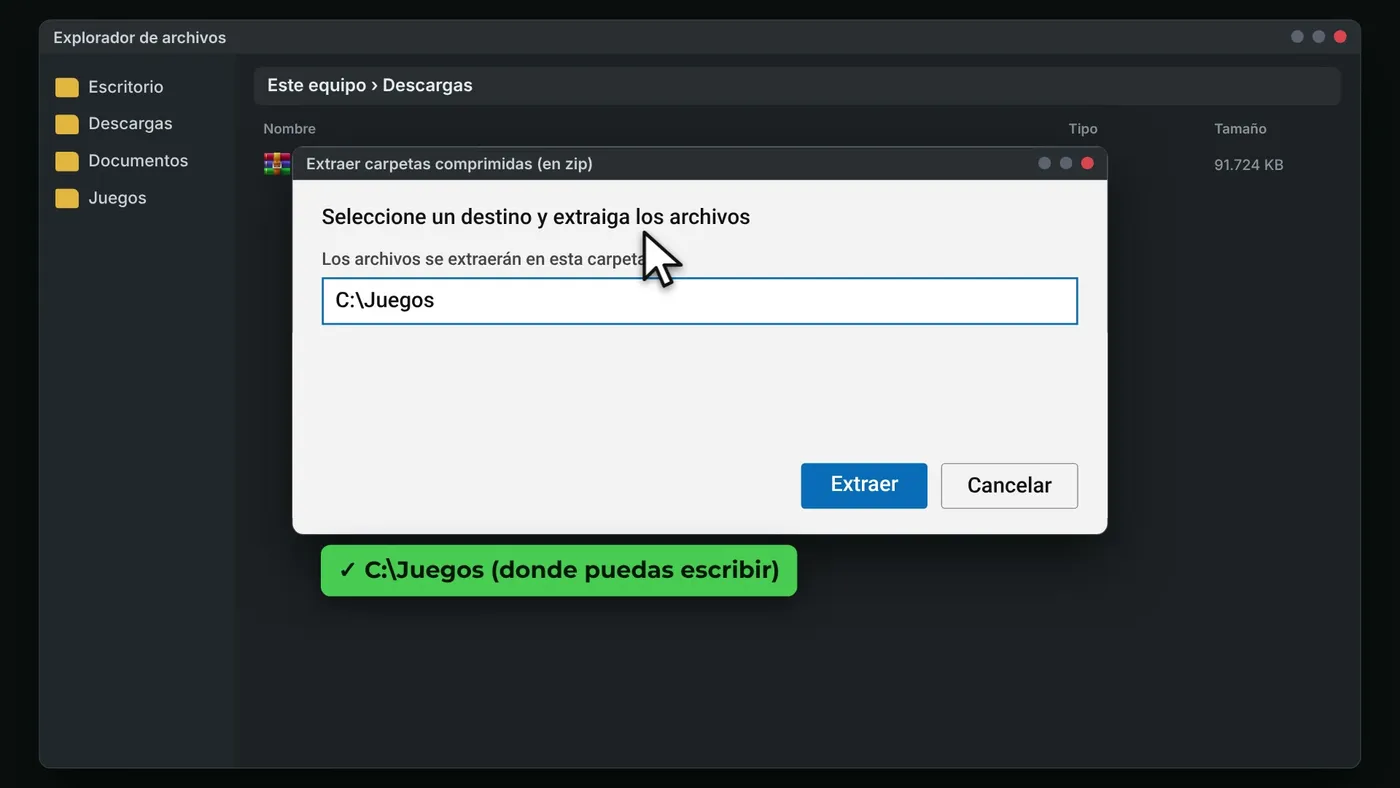
Step 3: open savagewind.exe
Go into the Savage Wind folder and run savagewind.exe.
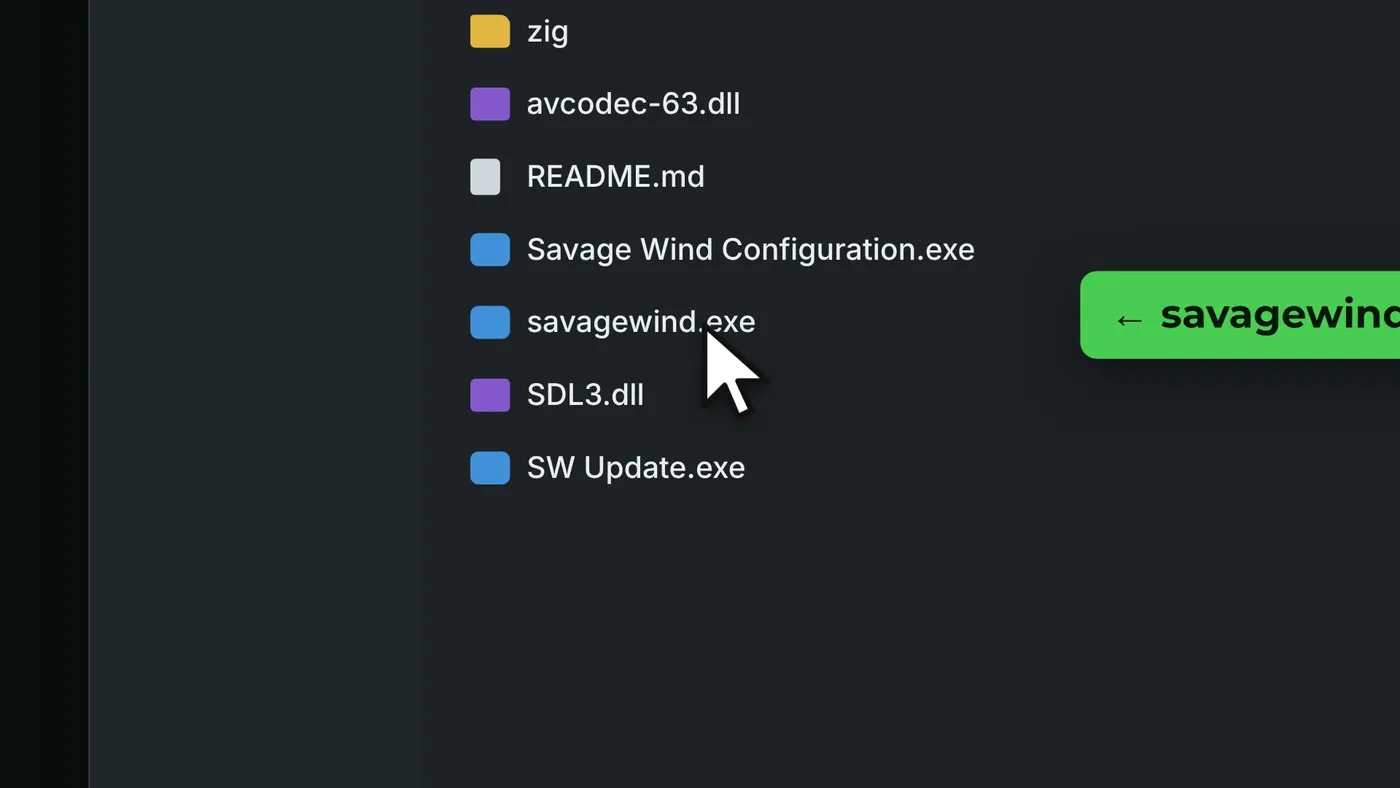
savagewind.exe.Step 4: choose the game folder and click "Set up game files"
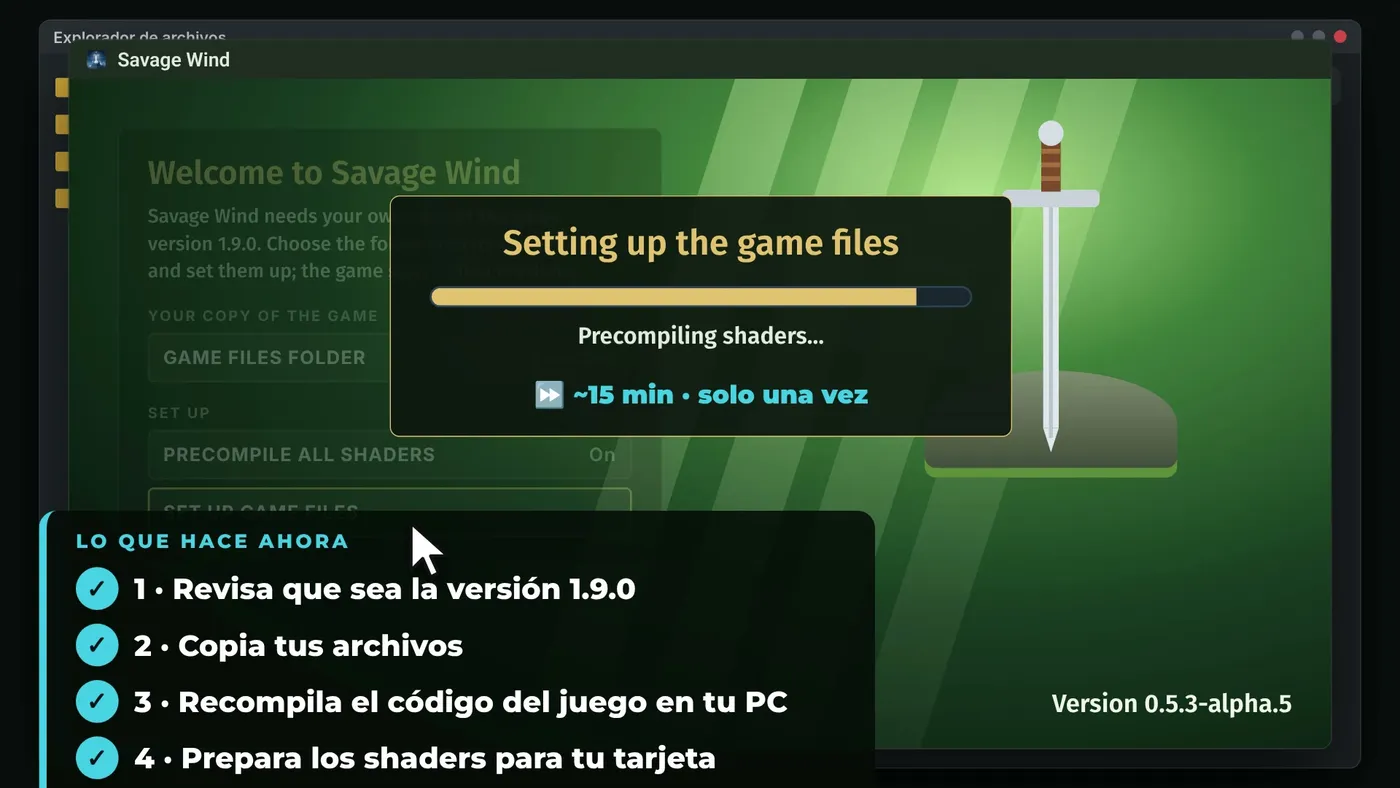
The first time, it asks for the folder that contains exefs and romfs. Pick it, leave shader precompilation on and click Set up game files.
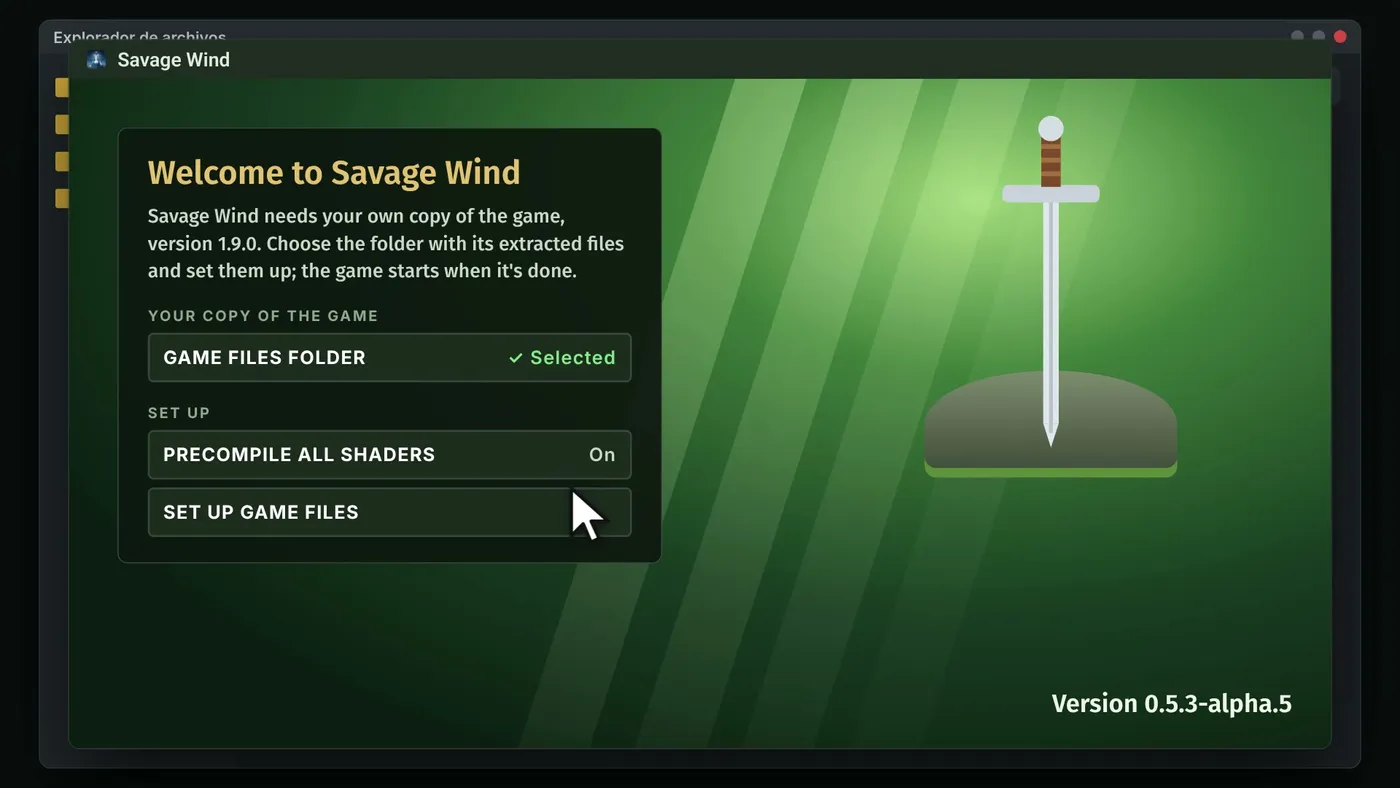
Step 5: wait about 15 minutes (first time only)
The program checks that the version is 1.9.0, copies the files, recompiles the game code on your PC and precompiles the shaders for your graphics card. It takes about 15 minutes on a 12-thread CPU (longer with fewer threads) and only happens once. When it finishes, the game starts by itself.
Afterwards: settings and updates
- Settings are in Options, inside the game, and in Savage Wind Configuration.
- Since version 0.5.1 it updates with one click from Savage Wind Configuration. Your files, saves and settings are kept.
- Saves are stored in the
savefolder, next tosavagewind.exeon Windows. To back them up, close the game and copy the whole folder.
Common problems and how to fix them
These fixes come from the project's official FAQ.
"No game files found in that folder"
The folder you choose must contain exefs and romfs directly, with no extra folder in between.
It says the version is wrong
Your copy is not 1.9.0, which is the only supported version. Update the game on your console and extract the files again.
It gets stuck at 5% or 10%
- Leave about 20 GB free on the disk.
- Don't put Savage Wind in "Program Files" or in OneDrive.
- Check that your antivirus hasn't blocked anything in the folder.
The loading screen after entering a Divine Beast never ends
The DLC is probably merged inside romfs/. Set the game up again with the DLC in separate folders (aoc1/ and aoc2/). Your saves are kept.
A cutscene freezes
Drop to 30 FPS for that part. It's a known alpha issue.
Stutter the first time you play
That's shaders being compiled for your card for the first time; it goes away once they are cached. On NVIDIA, raise the Shader Cache Size in NVIDIA Control Panel → Manage 3D settings.
Error on an Intel or integrated GPU (c0000005)
Close the game, open savagewind.ini (next to savagewind.exe) and set sparse_heap = off.
"Vulkan device lost"
Update your graphics driver and lower the resolution and shadow quality: running out of video memory is one of the known causes.
Frequently asked questions about Zelda Breath of the Wild on PC
Is Savage Wind legal?
Savage Wind's code is its own and open source (MIT), and it includes nothing from Nintendo. The game is © Nintendo, and you have to provide your own files. What is allowed when obtaining those files depends on your country and is your responsibility. I'm not a lawyer: check the laws where you live.
Does the Wii U version work?
No. It only works with the Switch 1.9.0 version. The project doesn't support older versions or the Wii U one. You can, however, import saves from Wii U and Cemu.
Does it work on Steam Deck?
Yes. The Steam Deck is the handheld the project tests on. You use the x86_64 .AppImage. Other PC handhelds have a preset ready, but the project has only tried the Deck.
Does it have mods?
Partly, and not yet like on Cemu. Language packs do work. A loader for other mods is planned, and Wii U or Cemu packs need adapting because this isn't an emulator.
Will it work on Mac?
It's not planned. The project focuses on Windows and Linux (x86-64).
What about Tears of the Kingdom?
The project has no plans for that game: Savage Wind is only Breath of the Wild. There are separate projects for the other one.
Is it better than using an emulator?
It depends on your hardware. It has clear advantages, such as native keyboard and mouse or the graphics options, but it's an alpha and still has bugs. If you'd rather emulate, check our Eden guide. You can also find more native PC ports in the GigaROM directory.
Conclusion
Seeing Breath of the Wild running natively on PC, with keyboard and mouse and no emulator, is one of the most interesting things to happen with ports this year. It's an alpha, so be patient with the bugs, but you can already finish the whole game. If you try it, let me know how it goes. You can find the port page in our directory, with requirements and limitations.
If you like guides on native PC ports, subscribe to my YouTube channel: I keep uploading them as they come out.
Official links and credits
- Official GitHub: github.com/Revivedx/SavageWindRecomp
- Version used: v0.5.3-alpha.5
- Official FAQ: docs/FAQ.md
- Credits: Revivedx (Savage Wind Recomp), Paperboy360 (gameplay), Nintendo (game and trailer) and Evan-Amos (photos, public domain).
Notice: Savage Wind Recomp is a fan project, unrelated to Nintendo. The Legend of Zelda: Breath of the Wild is © Nintendo. GigaROM does not host the game or any game files, and this guide does not explain how to obtain them.