
What is Ryujinx and Why Use It?
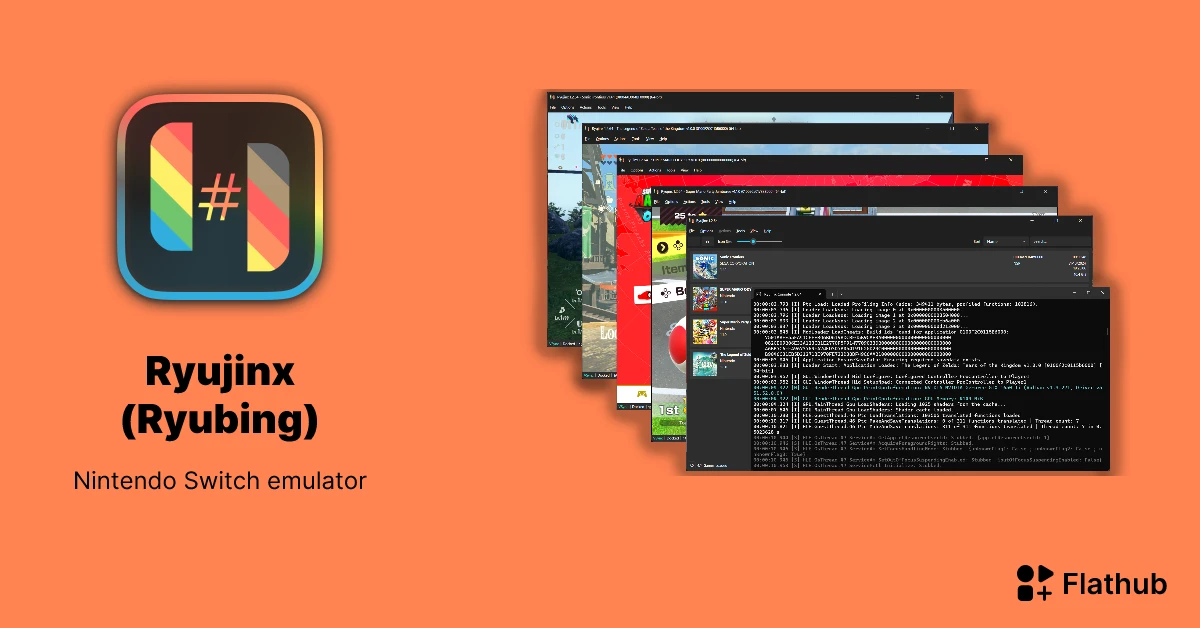
Ryujinx is a Nintendo Switch emulator developed in C# that allows you to run Switch games on Windows, Linux, and macOS. Advantages:
- High compatibility with AAA titles.
- Frequent updates.
- Support for mods and graphical enhancements.
- Free and open-source.
Compared to Yuzu (discontinued), Ryujinx is still active and constantly improving.
System Requirements for Ryujinx
Before starting, check that your PC meets the minimum specs:
- Operating System: Windows 10/11 (64-bit), Linux, or macOS.
- Processor: CPU with AVX2 support (Intel Core i5 or higher / AMD Ryzen 5+).
- RAM: Minimum 8 GB (recommended 16 GB).
- GPU: Dedicated graphics card with Vulkan 1.1+ (NVIDIA GTX 1050 or higher / AMD RX 560+).
- Storage: At least 500 MB for the emulator + space for games and firmware.
Step 1 - Download Ryujinx
- Go to the official Ryujinx website: ryujinx.org
- In the Download section, select the latest version for your OS (Windows recommended: .zip portable).
- Download the file (e.g., ryujinx-1.x.x-win_x64.zip).
- Extract the ZIP to an easy-to-access folder, like C:\Ryujinx.
Tip: Use the "Avalonia" version for a more modern interface.
Step 2 - Obtain Prod Keys and Title Keys
Prod keys are essential files for decrypting games. We do not share them here for legal reasons, but you can get them from your own Nintendo Switch:
- You need a hackable Switch with custom firmware (CFW) like Atmosphere.
- Use tools like Lockpick_RCM or TegraRcmGUI to dump the keys.
- The key files are:
- prod.keys
- title.keys
Save these files in plain text.
Legal Alternative: Search Google for "dump prod keys from switch" with official community tutorials (e.g., on GBAtemp).
Step 3 - Install Nintendo Switch Firmware
The firmware is the Switch's operating system. You need to dump it from your console:
- With CFW on your Switch, use nxDumpTool or Goldleaf to export the firmware.
- Select the latest version (e.g., 18.1.0 or higher in 2025).
- You'll get a folder with files like system, normal, etc.
In Ryujinx:
- Open the emulator.
- Go to Options > Settings > System.
- Click Install Firmware and select the ZIP or firmware folder.
Step 4 - Configure Ryujinx
- Add Prod Keys:
- In Ryujinx, go to File > Open Ryujinx Folder.
- Create a system folder if it doesn't exist.
- Copy prod.keys and title.keys there.
- Graphics Settings:
- Options > Settings > Graphics.
- Enable Vulkan (better performance).
- Adjust resolution (2x for upscaling).
- Controls:
- Options > Settings > Input.
- Set up your controller (Xbox, PS5, or Joy-Con via BetterJoy).
Step 5 - Add and Play Games
- Dump your legal Switch games with nxdumptool (in .nsp or .xci format).
- In Ryujinx: File > Add to game list > Select the games folder.
- Double-click a game to start.
Recommended Games to Test: Zelda TOTK, Mario Odyssey, Super Smash Bros.
Common Troubleshooting
| Issue | Solution |
|---|---|
| Black screen | Update GPU drivers and Vulkan. |
| Invalid prod keys | Ensure they match the firmware version. |
| Low FPS | Lower resolution, close background apps. |
| Games not detected | Confirm NSP/XCI format and correct keys. |
Updates and Final Tips
- Update Ryujinx regularly from the official site.
- Join the community: Ryujinx Discord or Reddit r/Ryujinx.
- Use mods like FPS Unlocker for 60+ FPS.
- Legality: Only use dumps from your own games and console.
Firmware: https://www.mediafire.com/file/2ygep2uyer5d2hm/Firmware_20.0.1.zip/file
Keys: https://www.mediafire.com/file/vjnw070sieyt82p/ProdKeys.net-v20.0.1.zip/file